Last updated on October 30th, 2025 at 02:02 pm
Are you an anime-loving, Samsung Smart TV owner? Searching for Crunchyroll on your TV and wondering why is Crunchyroll not on Samsung TV?
You are not alone in this crisis. With Samsung’s decision to not support the Crunchyroll app any longer, a lot of users expressed their disappointment.
Crunchyroll is a vastly popular streaming service for anime, manga, and dorama lovers. Its extensive content library caters to all the die-hard fans, adding to its appeal. So it became quite a disappointment when Samsung discontinued Crunchyroll’s availability on its Smart TVs.

But fear not, there are many workarounds you can use to install Crunchyroll on your S5amsung smart TV and start enjoying anime on the big screen.
Why is Crunchyroll not on Samsung TV?
Short Answer: Tizen, the operating system (software) that Samsung TVs utilize, does not support the Crunchyroll app. This means that you cannot access the Crunchyroll App directly on your Samsung TV. Crunchyroll is compatible with smart TVs operating on AndroidOS and not TizenOS. Due to this reason, Samsung TVs run on Tizen OS lack the Crunchyroll Android app for streaming.
It’s an unfortunate situation that Samsung Smart TV no longer allows users direct access to their preferred streaming services. However, we do have alternate ways to overcome this obstacle.
Let’s get to know about these methods.
Fix: Crunchyroll is not on Samsung TV
In usual cases, you can stream all the content on Crunchyroll freely just by having an account. However, the situation changes when you try to stream it on unsupported devices like Samsung Smart TV.
By casting Crunchyroll from your smartphone (Android, iPhone, or iPad), using Samsung Smart TV browsers to visit the website, connecting a Crunchyroll-supporting streaming device to your TV, using a compatible console, or any combination of these methods, you can get Crunchyroll on your Samsung TV.
Method 1: Stream using a Chromecast
Google Chromecast is an excellent casting device. It can be used to cast nearly anything from your smartphone to your Samsung TV without much of a hassle.
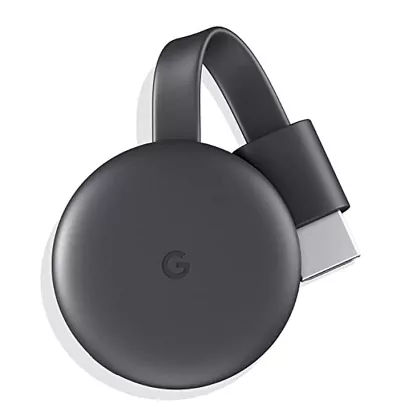
One key factor in this arrangement is the presence of a stable internet connection to keep the Chromecast connected to your phone.
Follow the steps below to cast Crunchyroll on Samsung TV using Chromecast:
- Power up the Samsung Smart TV and connect it to Chromecast devices with the help of an HDMI port.
- Install and launch the Crunchyroll App on your smartphone.
- Login to your Crunchyroll account.
- Click on the “Cast icon” and play any video on the app.
- Choose a Chromecast device from the list of devices connected to the same network.
- Once the Chromecast device pairs with your phone, the video playing on your phone will be cast on the Samsung Smart TV.
Method 2: Stream Using Fire Stick or Roku
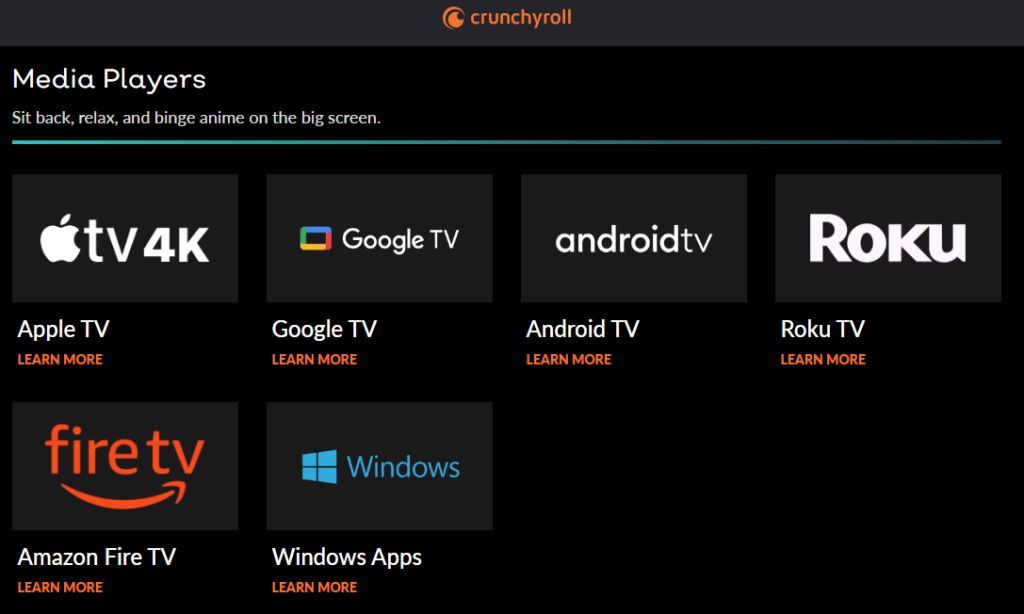
Streaming devices like FireStick, Roku, or Apple TV can be used to directly get the Crunchyroll App on Samsung smart TV.
Follow the steps below to stream Crunchyroll on Samsung TV using Firestick:
- Connect the Firestick to your Samsung TV using an HDMI port.
- Establish a stable internet connection and go to the Firestick “home screen” on your Smart TV
- Enter Crunchyroll in the search bar present at the top left corner.
- Download the Crunchyroll app once it appears in search results.
- Launch the installed app from the “My Apps and Games” section.
Now you can stream all the Crunchyroll content on your Samsung TV quite easily. Other streaming devices like Roku or Apple TV work in a similar manner.
Method 3: Cast using your Smartphone
While streaming devices work exceptionally well for streaming Crunchyroll on Samsung smart TVs, these devices do come with an additional price tag.
Good thing that we don’t always need these extra devices to cast Crunchyroll on Samsung TV. Just your Samsung phone will work fine too.
Follow the steps below to Cast Crunchyroll on Samsung TV using your Smartphone:
- Turn on your Samsung smart TV.
- On your smartphone swipe down to open the “quick panel”.
- Click on the “Smart View” option in the quick panel.
- Choose your Samsung TV from the list of compatible devices that appear.
- Wait for the devices to finish pairing.
- Once the pairing is done your phone screen will mirror the Samsung TV screen.
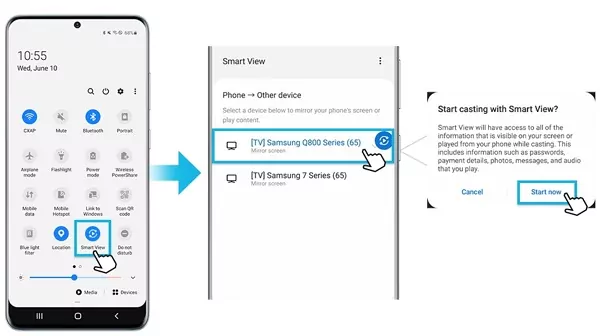
Now you can stream Crunchyroll on your phone and it’ll mirror on your Samsung TV.
Method 4: Cast using your iPhone
For your iOS devices, the casting steps are a little different from Android. Screen sharing between Samsung TV and iPhone/iPad occurs with the help of Airplay.
Follow the steps below to cast Crunchyroll on Samsung TV using iPhone/iPad:
- Start by making sure that both of your devices are connected to the Wi-Fi network.
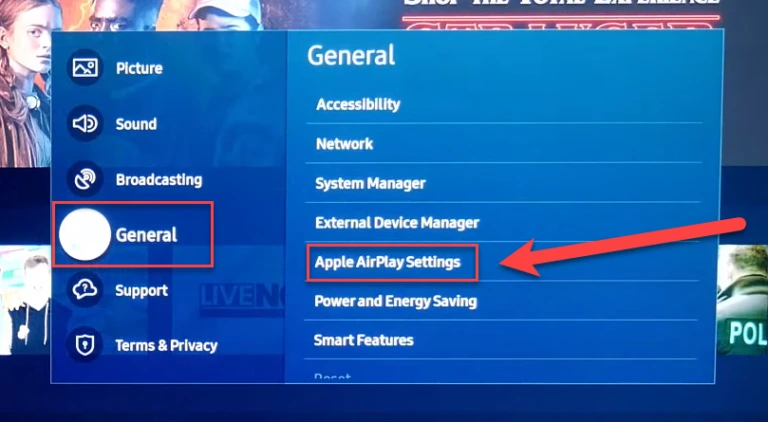
- Go to the Settings menu on your Samsung TV.
- Click on the Apple AirPlay Settings option settings under General.
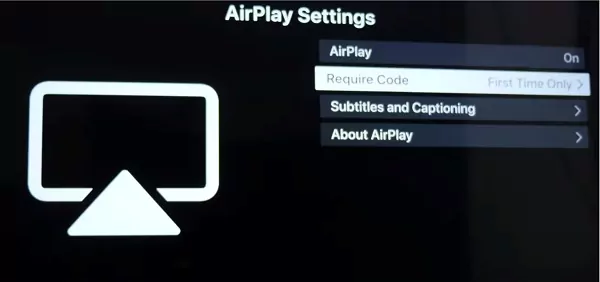
- Turn on AirPlay.
- Launch the Crunchyroll app on your iOS device and start playing any video.
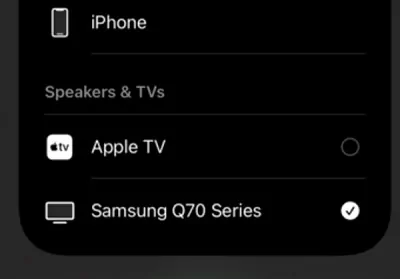
- Swipe down on your phone screen to access the control panel and click on the AirPlay or Screen Mirroring option.
- Select your Samsung TV from the list of devices.
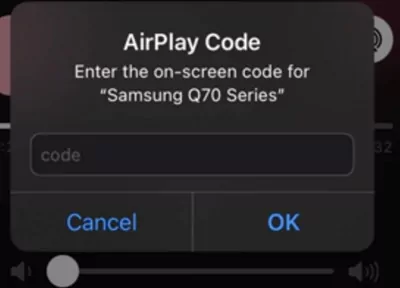
- A code will appear on your Samsung TV.
- Enter the code on your iOS device.
This will start the screen sharing between your Samsung Smart TV and iOS device. Remember that not all Samsung TVs support AirPlay so check before if yours has the feature or not.
Method 5: Stream using a Gaming console
If you own a gaming console you are in luck. Numerous gaming consoles like PlayStation 3, PlayStation 4, PlayStation, Xbox One, etc. have the Crunchyroll app available on their app store.
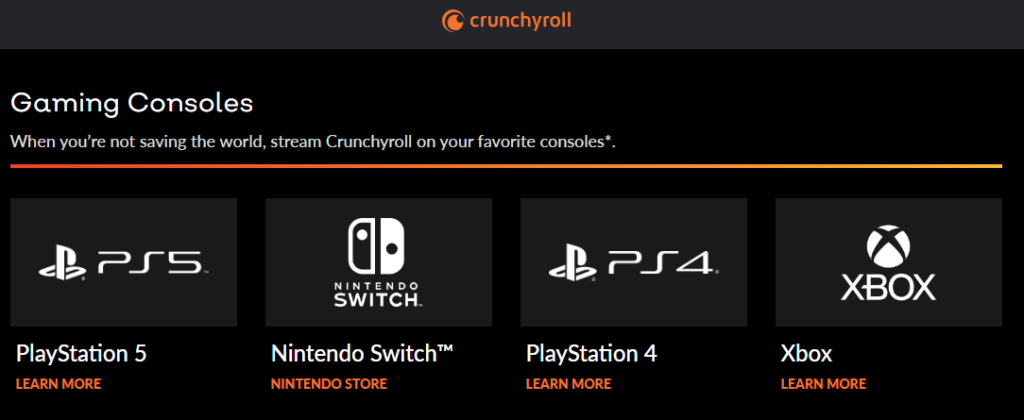
Using these consoles you can easily stream the Crunchyroll app on your Samsung Smart TV. If you wish to know how to watch Crunchyroll offline, check out this article.
Method 6: Stream using HDMI cable
Another easy way to stream Crunchyroll on your Samsung TV is by connecting it to your PC or Laptop using an HDMI cable.
Simply connect your laptop or PC and Samsung SmartTV using a HDMI cable. Select the connected device on your Samsung TV.
Once the two are connected, adjust the display settings. Now you can browse Crunchyroll on your laptop and it’ll also appear on your TV screen.
Final Words
So there you have it, all the ways you can trick your Samsung Smart TV into streaming Crunchyroll. You can choose any of the mentioned methods at your convenience and get to streaming.
It’s a bit inconvenient having to go through so many steps just to use your preferred streaming service. However, in the end, you get to enjoy your favorite Anime on the big screen. Check out this article to get recommendations on some amazing horror Anime.

Engineering edified me dreams’ propelling. And being an Otaku, a superlative dream of mine engulfs experiencing anime to its deepest quintessence and inditing my perspective towards it. Ultimately, anime blogging carved a path towards my desire and made me stand up to you.
Note: Some of the links on this page are affiliate links, which means we may earn a small commission if you choose to make a purchase through them-at no extra cost to you. We only recommend products and services we genuinely believe in and find useful.